KEY
Assign Digi3D.AI commands to keystrokes in the active virtual keyboard.
Parameters
| Parameter number | Description | Values | Optional |
|---|---|---|---|
| 1 | Text file containing commands to assign, one per line | File path | Yes |
Notes
Create or modify assignments in the active virtual keyboard (.keyboard.xml) without editing the file manually.
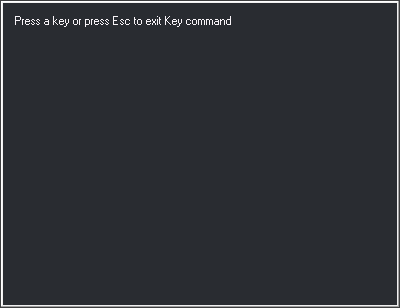
The command opens Press a key or press Esc to exit Key command:

Press the key or combination to assign, for example Ctrl+a or Shift+F3. Shift, Ctrl, Alt, Pause, and Caps Lock cannot be assigned alone, and Esc cannot be assigned. F1 can: while this dialog waits for a key, it does not open help (see Assigning F1).
Key assignment opens:
- Key: read-only name of the pressed key.
- Control, Shift, and Alt: indicate modifiers pressed with the key. Disabled because the keystroke sets the combination. To assign another combination, click Cancel and press it.
- Description of the action taken when pressing this key: description of what the key does.
- Enter the commands to be run when pressing this key: commands to run, one per line.
If already assigned, the existing commands and description appear.
Click OK. The assignment replaces the previous one and is immediately saved in the active virtual keyboard
.keyboard.xmlfile. The command waits for another key.Press Esc to finish.
Cancel in the assignment dialog retains the previous assignment and returns to waiting for another key.
To remove an assignment, clear all its commands and click OK.
The saved key name depends on the Windows keyboard layout language.
Assigning F1
An F1 assignment applies only when the drawing or photogrammetric window has focus. In dialogs, including Key assignment, F1 still opens help.
With no assignment, F1 in the drawing window runs HELP, opening the current command help or the help home page. In the photogrammetric window, it opens the help home page.
No virtual keyboard loaded
On OK, Digi3D.AI asks whether to create a key assignment file and requests its name. Answering No or canceling file selection leaves the assignment unsaved.
File cannot be saved
If .keyboard.xml cannot be written (for example, due to permissions), Error saving the keys file appears:
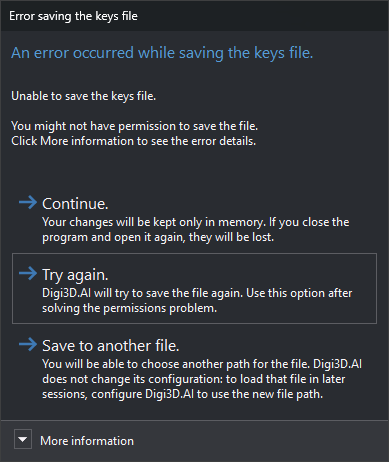
More information shows the file path and operating system error. The dialog has no close button.
- Continue.: retain the assignment only in memory, losing it when the application closes.
- Try again. (or Esc): retry saving; another failure displays the dialog again.
- Save to another file.: request another path and save the entire virtual keyboard there. Until Digi3D.AI closes, subsequent assignments use that new file. Configuration is unchanged: to load it in later sessions, add it to Virtual keyboard configuration or, with projects enabled, Keyboard in project configuration. Canceling path selection retries the original file.
With a parameter
The assignment dialog shows commands read from the file instead of the existing assignment, with an empty description. The command ends after OK or Cancel. Files use Windows ANSI encoding. If the file cannot be opened, behavior is the same as without a parameter.
Digi3D.AI uses this mode to assign a recorded macroinstruction to a key.
No drawing window open
Photogrammetric window/Keyboard/Key programmer runs this command when a drawing window is open. With only photogrammetric windows, it runs the version in Digi3D.CommonCommands.dll (internal name {4726C0C5-1522-4c56-A439-0D644E6D1BFE}). That version uses the same dialogs and virtual keyboard, with two differences:
- It accepts no parameter: it has no command name and runs only from that menu option.
- Key assignment cannot be resized and does not save its position.
In the photogrammetric window, Enter always opens the command entry field in the message bar, even when commands are assigned to it.
Command characteristics
| Command type | Immediate command |
|---|---|
| Repeats automatically | No |
| Menu option | Immediate/Virtual keyboards/Assign a command to an active virtual keyboard... Photogrammetric window/Keyboard/Key programmer |
| Toolbar | Keyboards |
| Extension | DigiNG.OrdenesStandard.dll (Digi3D.CommonCommands.dll when no drawing windows are open) |
| Implementation | Native |
| Related variables | No related variables |
| Related commands | CHANGE_KEYS_MNU |
| Internal name |
Note
Digi3D.AI cannot import key files from earlier versions. Use the console program to import them.