Code table editor
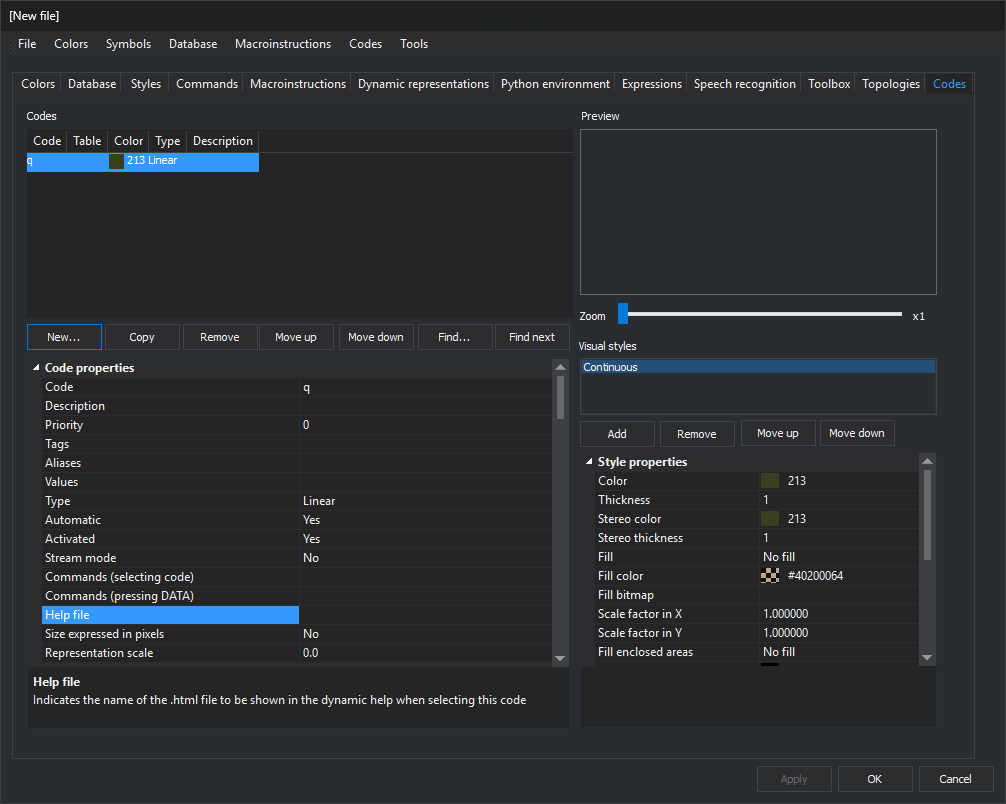
The code table editor (DigiTab) creates and edits code tables (.tab.xml). Its window has a menu bar, a row of tabs, and three buttons.
Buttons
- Apply: apply changes from the visible tab to the code table. Enabled when that tab has unapplied changes.
- OK: apply pending changes from all tabs; if the table has unsaved changes, display You have not saved the changes, then close. Database, Styles, and Codes ask before applying their changes.
- Cancel: close without applying or saving changes.
When changing tabs, Colors and Topologies apply their changes; Database, Styles, and Codes ask whether to apply them. Other tabs retain unapplied changes until Apply or OK.
Applied changes belong to the open code table but are not written to its file until File/Save.
You have not saved the changes
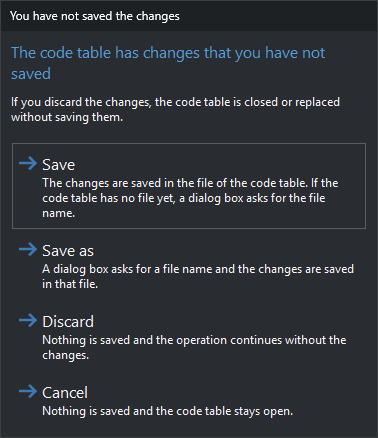
This dialog appears when the table has unsaved changes and you click OK or choose New or Open... in File.
- Save: save to the table file. If none exists yet, request a filename as with Save as. This is the default.
- Save as: request a filename and save there.
- Discard: save nothing and continue closing the editor, creating a table, or opening another table.
- Cancel: save nothing and leave the table open. Esc is equivalent.
Canceling file selection reopens this dialog. A file write failure displays an error and leaves the table open.