Check licenses
This program checks your dongle's licenses.
To check stored licenses:
- Click Start/Programs/Digi21.NET/Licenses/Check licenses. Check licenses appears.
- Select dongle appears. Next is disabled until a listed dongle is selected. Select the dongle to check and click Next. After a few seconds, Key's properties appears.
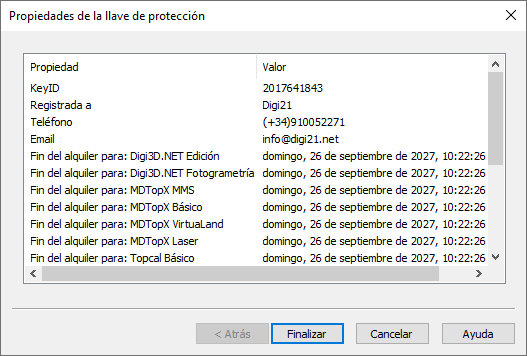
Possible fields and their display conditions:
| Field | Description | Condition |
|---|---|---|
| Key ID | Dongle serial number. | Always shown. |
| Registered to | Dongle owner's name. For temporary dongles, Digi21.net. |
Always shown. |
| Telephone | Dongle owner's telephone. For temporary dongles, (34)910052271. |
Always shown. |
| Dongle owner's email. For temporary dongles, info@digi21.net. |
Always shown. | |
| Technical support expiration for: XXX | Technical support expiration for purchased product XXX. | Only for purchased products; one field per product. |
| Rent expiration for: XXX | Rental expiration for product XXX. | Only with an active rental in the dongle. |
| Computer activated on this key until: date/time | Date and time until which the computer running Check licenses is activated in the selected dongle. | Only if that computer is activated in the dongle. |