Administrator privileges are no longer required to store Digi3D.NET settings
 Today we introduce a change that has been requested by business users for a long time: The ability to store configuration for non-administrator users.
Until now Digi3D.NET stored the settings in the Windows registry. The Windows registry has two important Folders:
Today we introduce a change that has been requested by business users for a long time: The ability to store configuration for non-administrator users.
Until now Digi3D.NET stored the settings in the Windows registry. The Windows registry has two important Folders:
- A (HKEY_CURRENT_USER) in which the configuration of the active user is stored. This is a folder owned by each user of the machine. A user always has read/write permissions on this folder, as it is his own folder. A user does not have permission to view or modify data in the user folder of other users of the machine.
- Another (HKEY_LOCAL_MACHINE) where the configuration of the machine is stored.Usually normal users do not have write permission in this folder and you need to be an administrator to be able to store things here.
Digi3D.NET stores configurations in both folders:
- User-specific settings, such as the color of the index to be displayed in the photogrammetric window, are stored in the folder HKEY_CURRENT_USER, as you may share a machine with another user who prefers another index color.
- Machine-specific settings, such as the stereoscopic display type, are stored in the folder HKEY_LOCAL_MACHINE.
The problem with the HKEY_LOCAL_MACHINE folder is that it requires elevation, i.e. it requires being an administrator to be able to store information there. That in a private user is usually not a problem, but business users usually complain that their users do not have permission to store HKEY_LOCAL_MACHINE and every time they want to make a change in the configuration they have to bother a network administrator. Today we present a new feature that solves this problem. From version 2018.14.0.0 we have solved this problem because now the machine information is no longer stored in the Windows registry, but is stored in a database sqlite located in the directory %ProgramData%\Digi3D.NET named Digi3DNET.db. The %ProgramData% folder is a folder in which all users have write permission and is used to store program data. What changes will I notice?
- We have simplified the Configuration dialog box, which until today was not intuitive at all because it had two buttons to accept:
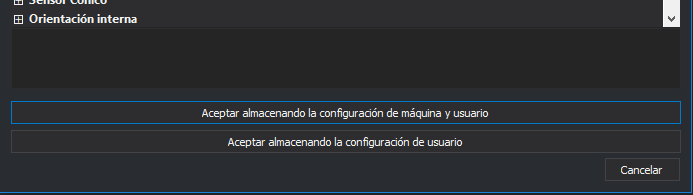 As you can see, there was one for storing machine and user information (which required elevation) and one for storing only user information. This was completely anti-intuitive. Now the configuration dialog looks like this other:
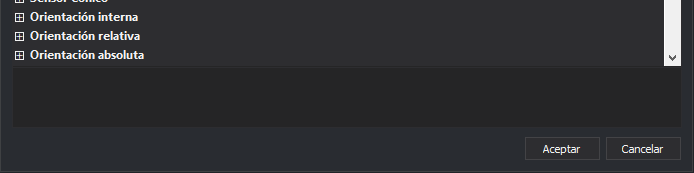
You can see that it is now much more intuitive.
As you can see, there was one for storing machine and user information (which required elevation) and one for storing only user information. This was completely anti-intuitive. Now the configuration dialog looks like this other:
You can see that it is now much more intuitive. - Now the program will never ask for elevation in any dialog box.
- Performance has been improved when reading configuration data since sqlite databases are very fast when querying.
What about my existing configurations? The program from now on every time it tries to locate a machine configuration, it tries to locate it first in the database. If it does not find it there, it tries to locate it in the registry (in HKEY_LOCAL_MACHINE). If it finds it in the registry, it stores it in the database so that the next time it tries to locate that configuration, it does not need to locate it in the registry. Now the program never stores information in the HKEY_LOCAL_MACHINE folder of the registry, but always stores it in the database.