Database views
We just added to Digi3D.NET a new tool that will allow you to visualize graphically the database information associated with a drawing file.
It basically consists of creating a virtual reference file that points to one of the files we have loaded, but instead of showing geometries, it shows tags whose content is extracted from the database.
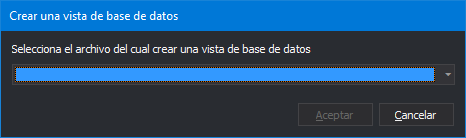
Creating a database view is very simple, we just have to select the menu option ** Database/Create database view **. Once executed, the program analyzes if we have loaded any drawing file with database information. If we have not loaded any file with database information it shows an error message. If not, it shows the dialog box Create a database view that will allow us to indicate which of the drawing files we have loaded with database information we want to create the database view.
 When we accept this dialog, the program creates a virtual file and loads it as a reference file, so that it appears in the drawing files pane, so that we can interact with the parameters that the file shows in the pane.
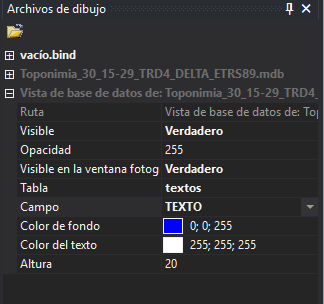 As you can see, we can specify on the one hand the table from which we want to extract information and on the other hand the field that we want to show in the drawing window.
It also allows us to indicate the display parameters of the tags such as the height of the texts to be displayed as well as the background color of the tag and the color of the text.
Each view can display only one table and one field of that table, so if we want to show more than one type of label from the same drawing file, we will have to create as many database views on the same file as types of labels we want to display.
If you look at the screenshot above, the name of the virtual file generated is called "Database view of: [file name]". When we have finished working with the view, we can download it with the LEAVE command or with the context menu that appears when you right-click on the name of this one in the drawing files pane.
If we download the original file the database view is not downloaded and still works correctly.
The database view only displays labels on point-type elements in the original file, so if you have other types of geometries, labels will not be displayed on those geometries, regardless of whether they have a database link to the specified table.
You can see this feature in action in the following video:
As you can see, we can specify on the one hand the table from which we want to extract information and on the other hand the field that we want to show in the drawing window.
It also allows us to indicate the display parameters of the tags such as the height of the texts to be displayed as well as the background color of the tag and the color of the text.
Each view can display only one table and one field of that table, so if we want to show more than one type of label from the same drawing file, we will have to create as many database views on the same file as types of labels we want to display.
If you look at the screenshot above, the name of the virtual file generated is called "Database view of: [file name]". When we have finished working with the view, we can download it with the LEAVE command or with the context menu that appears when you right-click on the name of this one in the drawing files pane.
If we download the original file the database view is not downloaded and still works correctly.
The database view only displays labels on point-type elements in the original file, so if you have other types of geometries, labels will not be displayed on those geometries, regardless of whether they have a database link to the specified table.
You can see this feature in action in the following video: