Code table and cell packages and a simpler Digi3D.NET startup dialog
For a long time we have been trying to reduce the number of files needed to work with Digi3D.NET and the parameters that are requested in the Drawing file tab of the New project dialog box. It is clear that the program requires too many files and asks too many things to get us started and, and that scares new users. Before version 2007 we needed the following files to work:
- code table.
- Tables for programs like Bintram and Bintop, etc.
- Color palette table.
- Translation tables (for BINDXF for example).
- Folder of macro instructions (or arrobas).
- Symbols folder.
- Key configuration file.
One of the main novelties of Digi3D 2007 was the incorporation of the code table in .XML format that allowed us to add all the information we wanted in the table, so we unified the code table, the color palette and the translation tables in a single file, so that with version 2007 the files needed to work were:
- code table.
- Tables for programs like Bintram and Bintop.
- Folder of macro instructions (or arrobas).
- Symbols folder.
- Key configuration file.
The .NET version was born with the possibility of assigning tags to codes, so that table files were no longer necessary for programs like Bintram and Bintop, and recently we added also in the .NET version the possibility of adding macro instructions files within the code table itself, so that until today in the .NET version we can do the same with:
- code table.
- Symbols folder.
- Key configuration file.
Today we introduce one more twist: The possibility of creating a package that includes the code table and the symbol folder, so that if we give a user a job, we only have to provide:
- Code table package.
- Key configuration file.
Starting today, we can create a code table package file using the menu option: File/Create code table package.
This will create a file with the extension .dt that will include on the one hand the code table and on the other hand all the symbols located in the symbol directory configured in the Code Table Editor program at the time of saving.
This file with extension .dt is nothing more than a .zip file to which we have changed the extension to .dt, so if you rename it to .zip you can see the contents and extract the table file and symbols without any problem.
You can add many more things within the .dt file, in the next blog posts we will show you news about it.
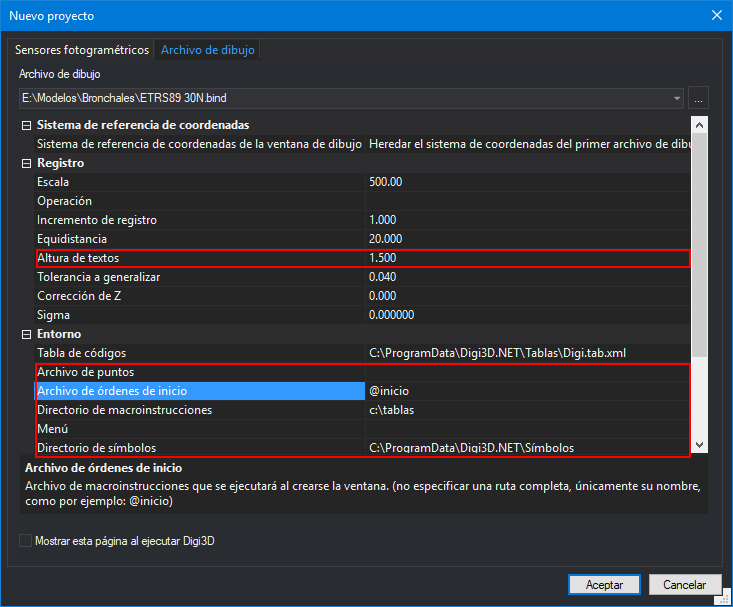 This modification has allowed us to further simplify the entry cover (or tab Drawing file of the dialog box of New project) of Digi3D.NET:
- We have removed the property "Text height". If you want to have a certain text height when entering, it is normal to set it in the start commands (more on this in point 3).
- We have removed the "Point file" property, commands that used it show a dialog box requesting the file, so in practice it was useless to ask for this file.
- We have removed the "Startup command file" property, since we can specify the commands to be executed when creating a window in the code table itself, in the "Commands" tab.
- We have moved the property "Macro directory" from the dialog box of New project to the dialog box of Configuration (in the section DigiNG), in this way it is clear that it is a second-class citizen, since the arrobas should be in the code table itself (in the actions tab).
- Same for the Menu property, we have moved it to the Configuration dialog box (in the DigiNG section).
- Same for the Symbol Directory property, which we have moved to the dialog of Configuration (in the section of DigiNG)
Below is a screenshot of how the dialog has looked like: New project (tab ) Drawing file):
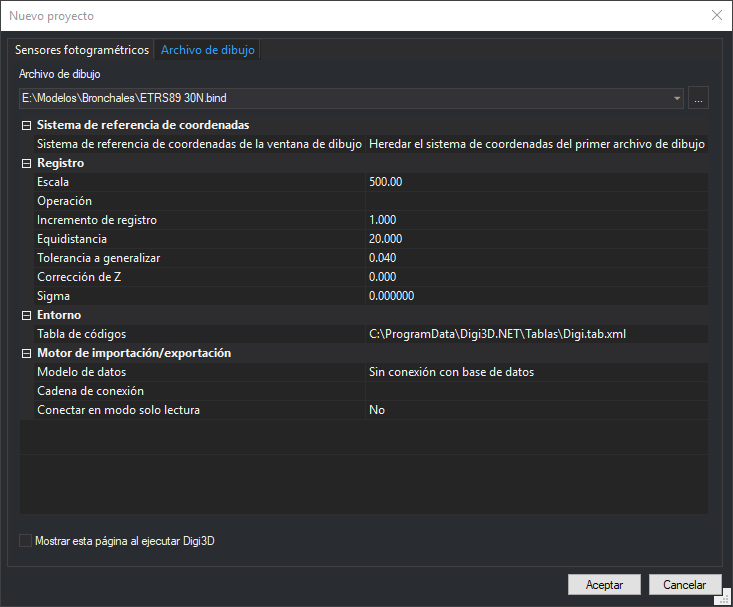 As you can see it has been simplified a lot.
From now on we can select in the field Codes table of the Drawing file tab of the New project dialog box either a code table file .tab.xml or a code table package file .dt.
If you select a .tab.xml file, the program will behave as before.
If, on the other hand, you select a .dt file, the program will ignore the symbol directory you have configured in the Symbol Directory field of the DigiNG section of the Configuration dialog box, since the symbols are included within the .dt package itself.
In addition, if the program detects that you have opened a .tab.xml file, it will show you a dialog box inviting you to read this entry that you are reading now so that you understand the changes made to the drawing file tab.
You can watch a video demonstrating all of these changes below:
As you can see it has been simplified a lot.
From now on we can select in the field Codes table of the Drawing file tab of the New project dialog box either a code table file .tab.xml or a code table package file .dt.
If you select a .tab.xml file, the program will behave as before.
If, on the other hand, you select a .dt file, the program will ignore the symbol directory you have configured in the Symbol Directory field of the DigiNG section of the Configuration dialog box, since the symbols are included within the .dt package itself.
In addition, if the program detects that you have opened a .tab.xml file, it will show you a dialog box inviting you to read this entry that you are reading now so that you understand the changes made to the drawing file tab.
You can watch a video demonstrating all of these changes below: