Can't load MDTopX files in Digi3D.NET? Here's how to fix it
If you have upgraded a version of Digi3D.NET it may have disappeared from the list of drawing files when loading reference file the option to load files of MDTopX.
This is because the Digi3D.NET extension that loads MDTopX files was previously installed in a Windows folder (named WinSxS) and in the latest versions it is not installed there, but installed in Program Files.
If you install Digi3D.NET on a new computer, everything is configured correctly, but if you upgrade from a previous version in which this extension was located in WinSxS, the installer will not modify the configuration that tells Digi3D.NET where to locate this extension and therefore modern versions of Digi3D.NET will think that it must be loaded from WinSxS and there they will not find anything.
To fix this, we just need to change the settings that tell Digi3D.NET where to find that particular extension.
This is a configuration that makes no sense to add in the Configuration dialog box of the program, because it is something very low-level, and to make changes of this kind we have the menu option: Tools/Advanced configuration...
This opens a dialog box that allows you to enter a SQL statement to modify the Digi3D.NET configuration file that is located in the path c:\ProgramData\Digi3D.NET\Digi3DNET.db, which is a SQLite file.
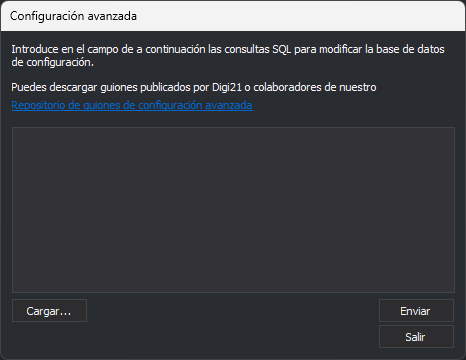
We just have to enter the following statement in that dialog box and press the Send button:
UPDATE Ints SET Data=0 WHERE Key=(SELECT Id FROM Keys WHERE Path LIKE '%Digi21.IO.Mdt%') AND Value='WinSxS'
And now it is solved: We close Digi3D.NET and open it again and we can load files from MDTopX with the command LOAD_F.