Dynamic menus, more dynamic than ever
We introduce a new feature that will help us increase productivity with Digi3D.NET.
One of the new features that Digi3D.NET introduced in 2011 was the ability to add tags to the codes in the code tables. These tags act as code tables and have the particularity that Digi3D.NET uses them to show them as options in different menus of the program.
For example, if we open a drawing file with a table with labels, if we enter the menu option Geometric analysis/Insert a vertex at the point where two lines cross, we can check that the program shows us as many options as labels have our code table as you can see in the following screenshot:
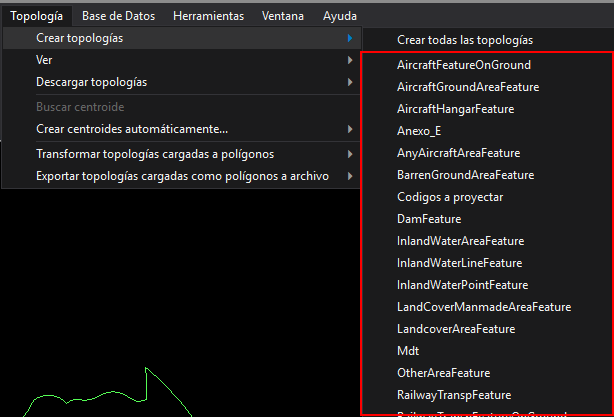 Thanks to this functionality we could create topologies, detect intersections, etc. in a very fast way, but it has a disadvantage: If our code table has many tags, the menus grow so much that they occupy more space than the height of the monitor itself, and looking for an option can become complicated, so that the initial objective of this functionality that was to increase productivity is lost.
We have solved this problem by making Digi3D.NET show only the tags of the codes of the entities of the drawing files loaded, so that if we do not have entities with the code of "Quarter" we are not shown for example the topological option to form quarries.
In the following screenshot you can see the same drawing file as in the previous screenshot but activating this functionality:
Thanks to this functionality we could create topologies, detect intersections, etc. in a very fast way, but it has a disadvantage: If our code table has many tags, the menus grow so much that they occupy more space than the height of the monitor itself, and looking for an option can become complicated, so that the initial objective of this functionality that was to increase productivity is lost.
We have solved this problem by making Digi3D.NET show only the tags of the codes of the entities of the drawing files loaded, so that if we do not have entities with the code of "Quarter" we are not shown for example the topological option to form quarries.
In the following screenshot you can see the same drawing file as in the previous screenshot but activating this functionality:
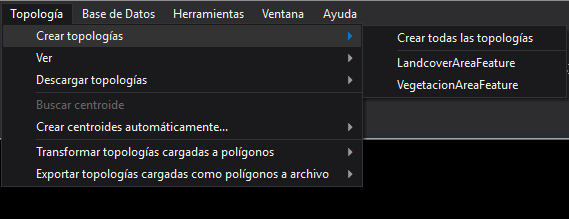 As you can see, only two labels are displayed, as there are no entities with codes that have the MDT tag associated in the drawing file, there is no point in showing this option.
You can enable or disable this feature using the menu option: Tools/Configuration/Communication with the user/Show all the tags The default option is to display only the tags of the codes of the entities loaded.
Below we show you a video with this new feature:
As you can see, only two labels are displayed, as there are no entities with codes that have the MDT tag associated in the drawing file, there is no point in showing this option.
You can enable or disable this feature using the menu option: Tools/Configuration/Communication with the user/Show all the tags The default option is to display only the tags of the codes of the entities loaded.
Below we show you a video with this new feature: