Improved error reporting in Digi3D 2011
Until now, when running Digi3D 2011, if an error was found when loading an extension, the program displayed a dialog box to the user indicating that an error was found when loading that extension.
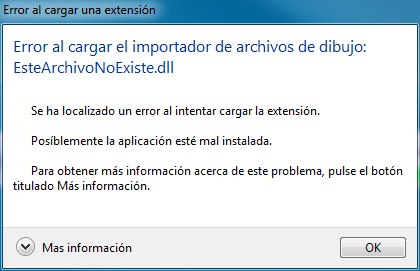 In fact, as the program installer installs an extension to communicate with mice Stealth 3D Mouse, and this extension requires that the computer has the mouse driver installed in order to load, on computers that did not have the driver installed a dialog box was displayed indicating that the extension could not be loaded.
This is not actually an error, just Digi3D 2011 informed the user that the extension could not be loaded, nothing else, they just had to accept the dialog box and continue, however (especially new users) perceived this message as an error.
So we have modified the program to communicate errors in a non-intrusive way, using the Windows log (journal).
The Windows log is a repository where applications can store error information, messages, warnings,...
To analyze the Windows log we can use the Event Viewer. You can run the Event Viewer by pressing the Windows button and typing Events in Windows 7. In Windows XP you have it in Administrative Tools.
The installer of Digi3D 2011 creates a log specific to Digi3D with the title Events of Digi3D. If your operating system is Windows XP, this log will appear directly in the branch Event Viewer(local). If you are using Windows 7 this log will appear in the branch Application and Service Logs..
In the following screenshot you can see how Digi3D 2011 is reporting that the module _Digi3D.ADS40Sensor.dll could not be loaded
 And then you have a video in which I explain this with a practical example, deconfiguring Digi3D making modifications in the registry and checking how the previous version behaves to the published the (I imagine that 24 April 2012).