Improvements to the ADS sensor
The ADS sensor (40, 80, 100...) has always been the most complicated to configure of all that has Digi3D.NET, as there is a field to configure DataPath that is not intuitive enough. When we select as active sensor the ADS sensor, the program requests three support files (with extension .SUP): one for the rear image, another for the zenith and finally one for the front. These .SUP files store a lot of information, and among the information they store are the paths to the image files on the one hand and to the sensor calibration files (external and internal orientations) on the other. The downside is that the path that is stored for these files is absolute, not relative, so you may come across a support file with the following information:
ORIGINAL_ORIENTATION   D:/decea.xpro/session/20110206112930/ica-sp1/output/fx10-1302_110206_135030_PANF27AL1.odf
ADJUSTED_ORIENTATION   D:/decea.xpro/session/20110206112930/ica-sp1/output/fx10-1302_110206_135030_PANF27AL1.odf.adj
ORIGINAL_CALIBRATION   D:/ADSCAM/cam/SH81_1302/v001/PANF27A.cam
As you can see, it is indicated that the images are in D:/decea.xpro/session/... That is the path in which the post-processing of the images of ADS was done, but that structure is not the one they usually give you, and even it is possible that my computer does not have drive D: To solve this problem, when designing the ADS sensor many years ago we added the DataPath field, which basically replaces the value stored in DataPath with the directory where the .D3D project file of Digi3D.NET is stored, so that if in the previous case we indicate that the DataPath is D:/decea.xpro/session and we create the project file in Z:*,* Digi3D.NET will try to load the image of Z:\session\20110206112930/ica-sp1/output/fx02-1302_110206_111037_PANF27AL1_4.ads The truth is that it is not very intuitive, and also does not work for cases like the one I have indicated above, since the file PANF27A.cam does not have a common root directory with the rest of the files and that we can only specify a single value in the DataPath, so that we would not have any way to replace anything in this second file, so that Digi3D.NET would not be able to locate the camera file. To solve this problem, we have made a number of changes:
- We have changed the name from DataPath to Paths to replace, which is much more intuitive.
- If we press the button of the three dots in the field Paths to replace will appear the dialog box Replacers that allows us to add as many routes as we want as in the following screenshot:
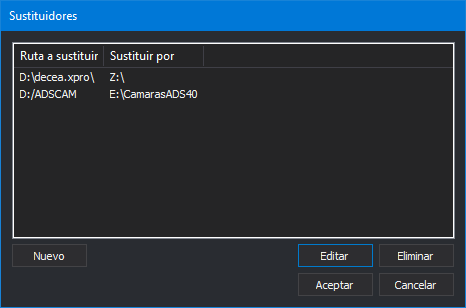 In this screen we check that Digi3D.NET will replace D:\decea.xpro with Z:\ and D:\ADSCAM with *E:*.
We can add as many routes as we want by pressing the New button. If we want to modify one, we just have to select it from the list and press the Edit button, and finally we can delete the entry that we have selected by pressing the Delete button
In this screen we check that Digi3D.NET will replace D:\decea.xpro with Z:\ and D:\ADSCAM with *E:*.
We can add as many routes as we want by pressing the New button. If we want to modify one, we just have to select it from the list and press the Edit button, and finally we can delete the entry that we have selected by pressing the Delete button
You can see this new feature in action in the video below: