Usability improvements in relative orientation
The first action that we must perform in Digi3D.NET when measuring a relative orientation is to select in the dialog box Relative orientation that appears attached in the right part of the photogrammetric window the scheme that indicates photocoordinates (referred to the left camera) where to correct the parallax. The installation of Digi3D.NET incorporates several schemes by default:
- Von Gruber for analogue aerial cameras
- Von Gruber for aerial camera Vexcel Ultra CAM D.
The difference between these two schemes is that the first is intended for images with an approximate size of 112x112 mm and the second for images with an approximate size of 65x100 mm.
If we select a wrong scheme it is possible that the program tries to correct parallaxes outside the image (if the image is smaller than the selected scheme) or vice versa, that the program tries to correct parallaxes in the center of the photo. This may not be a problem if we perform the relative orientation manually, but if we perform it automatically by correlation, it may fail.
Until now, if we received a camera with a new size, we had to edit the scheme database to add a valid scheme for cameras with that size, but with the new feature we have added it will no longer be necessary.
[caption id="attachment_395" align="alignnone" width="415"]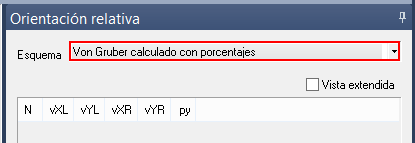 Part of the dialog box "Relative orientation" with the scheme "Von Gruber calculated with percentages" selected[/caption]
We have added a new type of scheme called Von Gruber calculated with percentages which, as its name indicates, calculates the photocoordinates where to correct parallax based on percentages that we indicate in the program configuration and image size.
In this way, the program will automatically calculate the areas where to correct the parallax regardless of the size of the images, this improvement will increase our productivity.
The percentages applied by default if we select this option will be 10% in horizontal and 20% in vertical, but we are free to change them in the two new options that have appeared in the dialog box Tools/Configuration/Relative orientation, in the fields Horizontal Von Gruber Percentage and Vertical Von Gruber Percentage that you can see in the following screenshot.
[caption id="attachment_401" align="alignnone" width="501"]
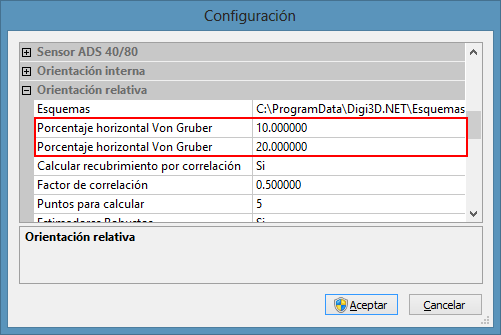 Configuration dialog box showing Von Gruber Horizontal and Vertical percentage options[/caption]