Improved database support in the Code Table Editor
Until now, in Digi3D.NET the menu options Tools/Database/Import schema from Geographics database or Tools/Database/Import schema from CATDBS database of the Code Table Editor were only able to connect to databases whose provider was accessible from the Data Link Properties dialog box of Windows.
Not all database providers add options in the dialog box Data link properties so that if we have a database that doesn't add options in that dialog box, such as databases in format Microsoft SQL Server we could not use these options to import the schema.
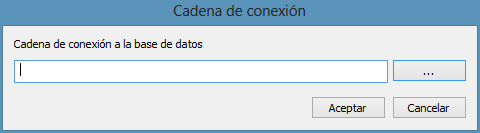 In the new version of the program, when selecting any of these two options, the Data Link Properties dialog box is no longer displayed directly, but the Connection String dialog box is displayed that will allow us to type the connection string manually or (by pressing the three dots button) show the Data Link Properties dialog box
To learn the connection string format for Microsoft SQL Server Compact databases, visit the Connecting to SQL Server Compact databases post on the Digi3D in depth blog.