Two working modes: two user interfaces
DigiNG.NET allows you to work with two different coding paradigms:
- We can work with the single code paradigm (as in previous versions or as do CAD and GIS programs on the market)
- We can work with the innovative multi-encoding system.
When we released Digi3D.NET, we decided to make a change in the user interface to allow multi-encoding.
This change consisted in removing the Code toolbar and in the appearance of a new dockable pane named Active Codes.
[caption id="attachment_583" align="alignright" width="300"]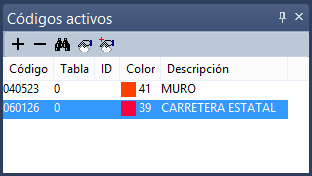 active code pane showing two codes simultaneously: Wall and State Road[/caption]
This pane allows you to select a series of codes that will be assigned to the entities to be digitized.
For example, in this screenshot we can see that we have selected as active codes the code 040523 (wall) and the code 060126 (state road), so that if we digitize a new geometry, it will simultaneously be a wall and a state road.
This pane also has its own toolbar that allows us to add codes to the code list, delete the codes selected in the code list, search for a new code, clone the codes of an existing geometry or add the codes of an existing geometry to the active code list.
This code pane is very convenient and amazing if we work with multi-coding, but it has two problems:
- It takes up more space than the old Code toolbar.
- Its appearance caused the disappearance of the Code toolbar which is shocking for users of Digi3D who have been working with the program for 20 years.
Several users who do not work with a multi-encoding data model have requested the ability to recover the old toolbar Codes and as a result we have an update of Digi3D.NET with the following feature:
In the menu Tools/Configuration/DigiNG we have a new option titled Multi-encoding interface which by default is configured with the option Yes.
[caption id="attachment_587" align="alignright" width="300"] Toolbar showing as active code the code (contour line thin)[/caption]
If we change it to No, after restarting the program we will see that the Code toolbar appears that will allow us to select a single code. The dockable pane Active Codes still exists if we activate this option, but disabled, so we are free to close it so that it does not take up space in the application.
If we activate this bar the multi-coding features of Digi3D.NET are lost, so we will not be able to select more than one code to assign to the new geometries.