Create Digi menus with the Code Table Editor
Digi3D.NET has a pane called Toolbox that is the heir of the Digi menus of MS-DOS. It is a pane that has a drop-down menu called Folders. Once an option is selected in the drop-down menu, the tool groups associated with that folder are shown in the main content of the pane, and within each group the tools are located, which are nothing more than options that when pressed execute a series of commands.
 This pane allows you to create folders and in each folder create groups and in each group allows you to create as many actions as you want.
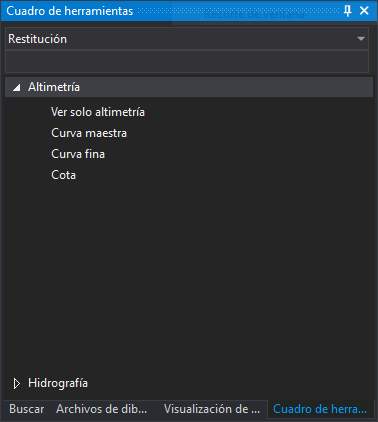
In this image you can see the Toolbox pane in which the stereoplotting folder is selected. This folder has two groups: Altimeter and Hydrograph. The user has expanded the Altimeter option and the pane is showing different options such as View only altimeter, Master curve, etc.
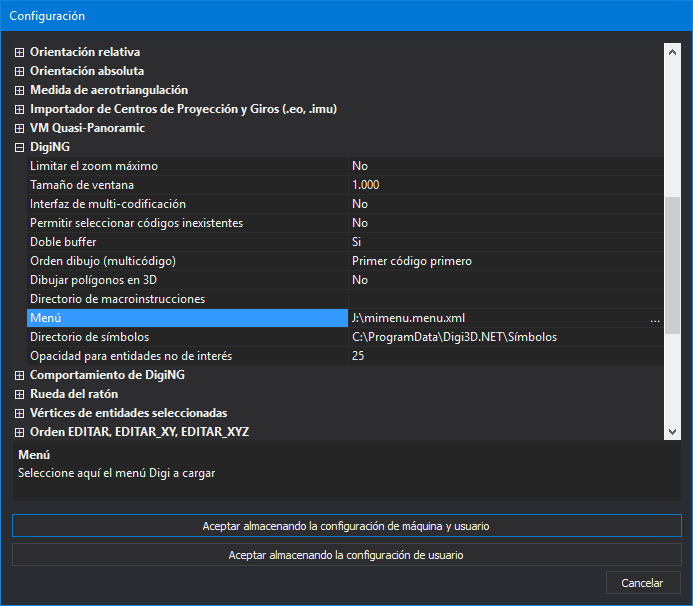
Until today Digi3D.NET filled this pane from the information provided Tools/Configuration/DigiNG/Menu as you can see in the following screenshot:
This pane allows you to create folders and in each folder create groups and in each group allows you to create as many actions as you want.
In this image you can see the Toolbox pane in which the stereoplotting folder is selected. This folder has two groups: Altimeter and Hydrograph. The user has expanded the Altimeter option and the pane is showing different options such as View only altimeter, Master curve, etc.
Until today Digi3D.NET filled this pane from the information provided Tools/Configuration/DigiNG/Menu as you can see in the following screenshot:
 This bread can help increase productivity a lot, but the problem is that in practice almost no one uses it because you have to make the file manually.
Today we present new features: We have removed the possibility of having a menu file, so we have removed all reference to the menu in the dialog box of Configuration, and we have made the menus part of the code table, so we have added a new tab to the program Code table editor named Toolbox that will allow you to create a toolbox graphically. You can see this new tab in the following screenshot:
This bread can help increase productivity a lot, but the problem is that in practice almost no one uses it because you have to make the file manually.
Today we present new features: We have removed the possibility of having a menu file, so we have removed all reference to the menu in the dialog box of Configuration, and we have made the menus part of the code table, so we have added a new tab to the program Code table editor named Toolbox that will allow you to create a toolbox graphically. You can see this new tab in the following screenshot:
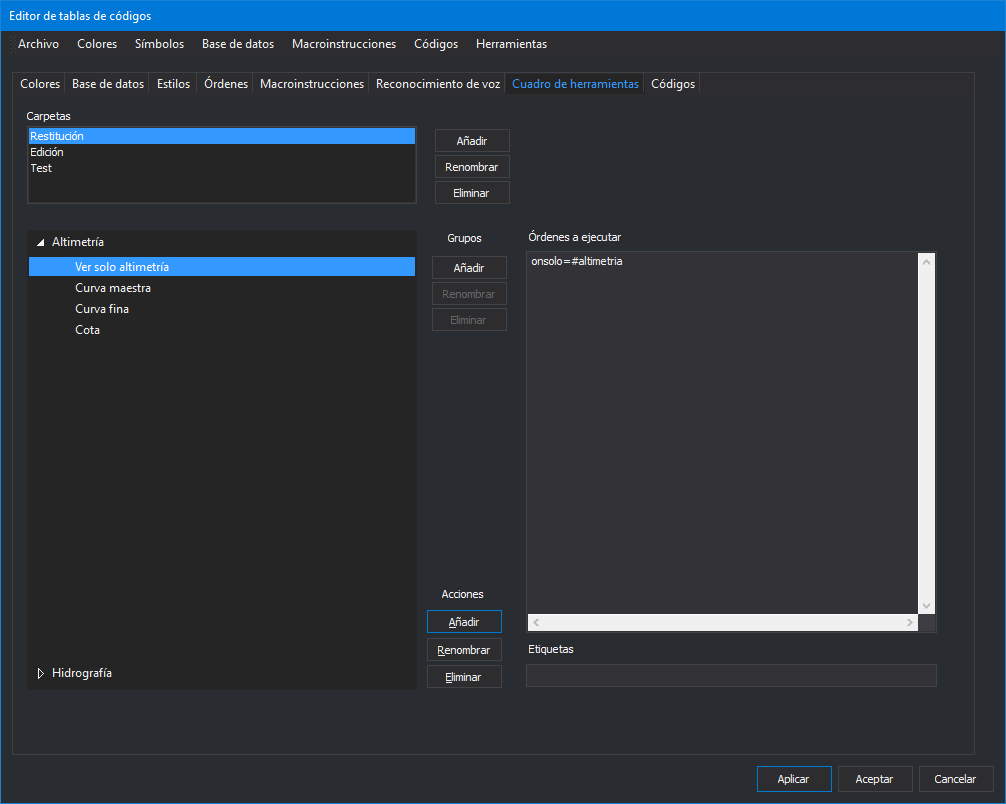 As you can see, you can create folders, and when you select a folder you can add groups and actions.
Once an action is selected, you can enter in the box on the right as many commands as you want to execute when the user selects that particular action.
If when loading a drawing file you select a code table that has a built-in toolbox, by the mere fact of opening the file the Toolbox pane will show the options that you have assigned in the code table.
You can see this new feature in action in the video below:
As you can see, you can create folders, and when you select a folder you can add groups and actions.
Once an action is selected, you can enter in the box on the right as many commands as you want to execute when the user selects that particular action.
If when loading a drawing file you select a code table that has a built-in toolbox, by the mere fact of opening the file the Toolbox pane will show the options that you have assigned in the code table.
You can see this new feature in action in the video below: